Print Screen opens Snipping Tool in Windows 11: how to change it back
After an update, the Print Screen key in Windows 11 opens Snipping Tool instead of copying the screen. It is one setting. Here is how to switch it off, what the key does then, and why another screenshot app may need it off too.

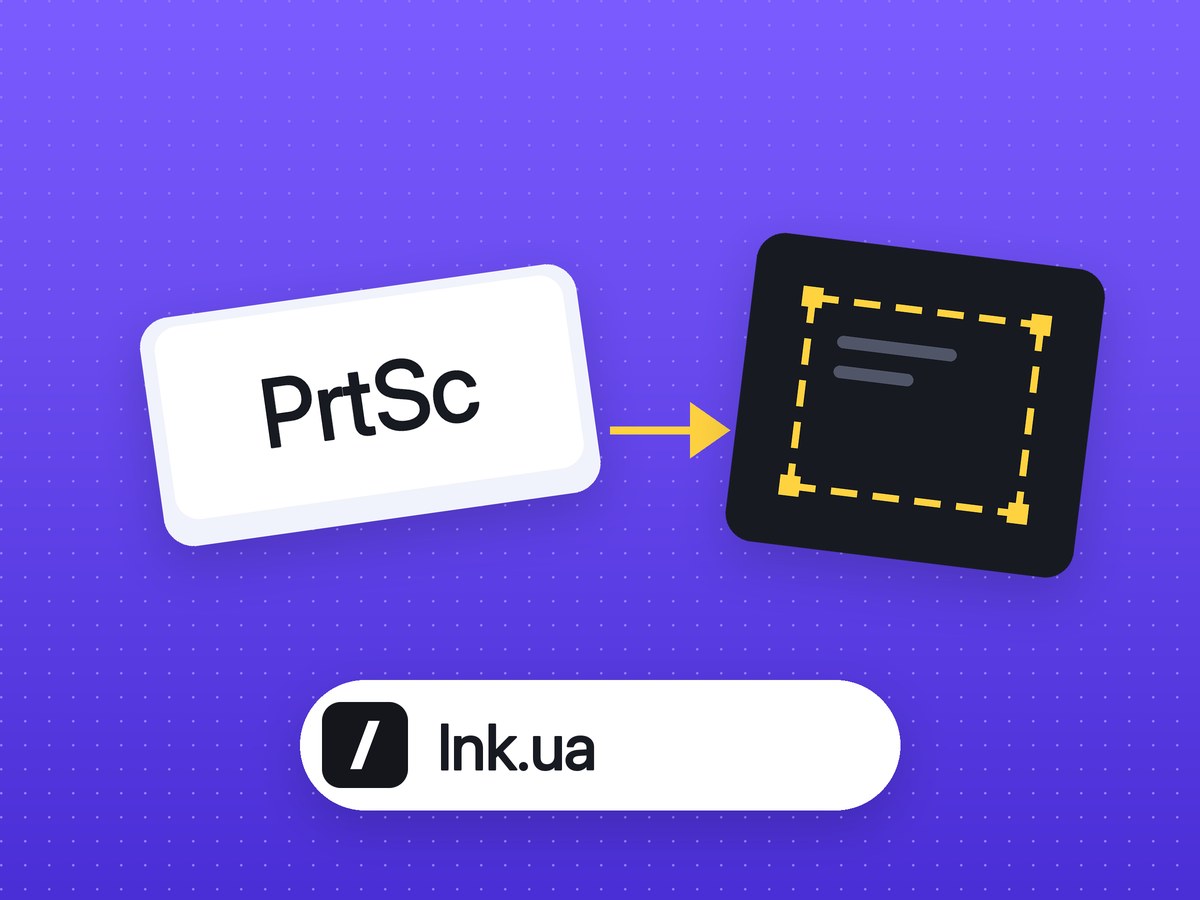
Since 2023, Windows 11 gives the PrtSc key to Snipping Tool by default. Press it and the screen dims for a selection; nothing is copied silently. Some people like that. Others lose an old habit, and screenshot apps that used PrtSc stop reacting to it.
Turn it off in Windows 11
- Open Settings → Accessibility → Keyboard.
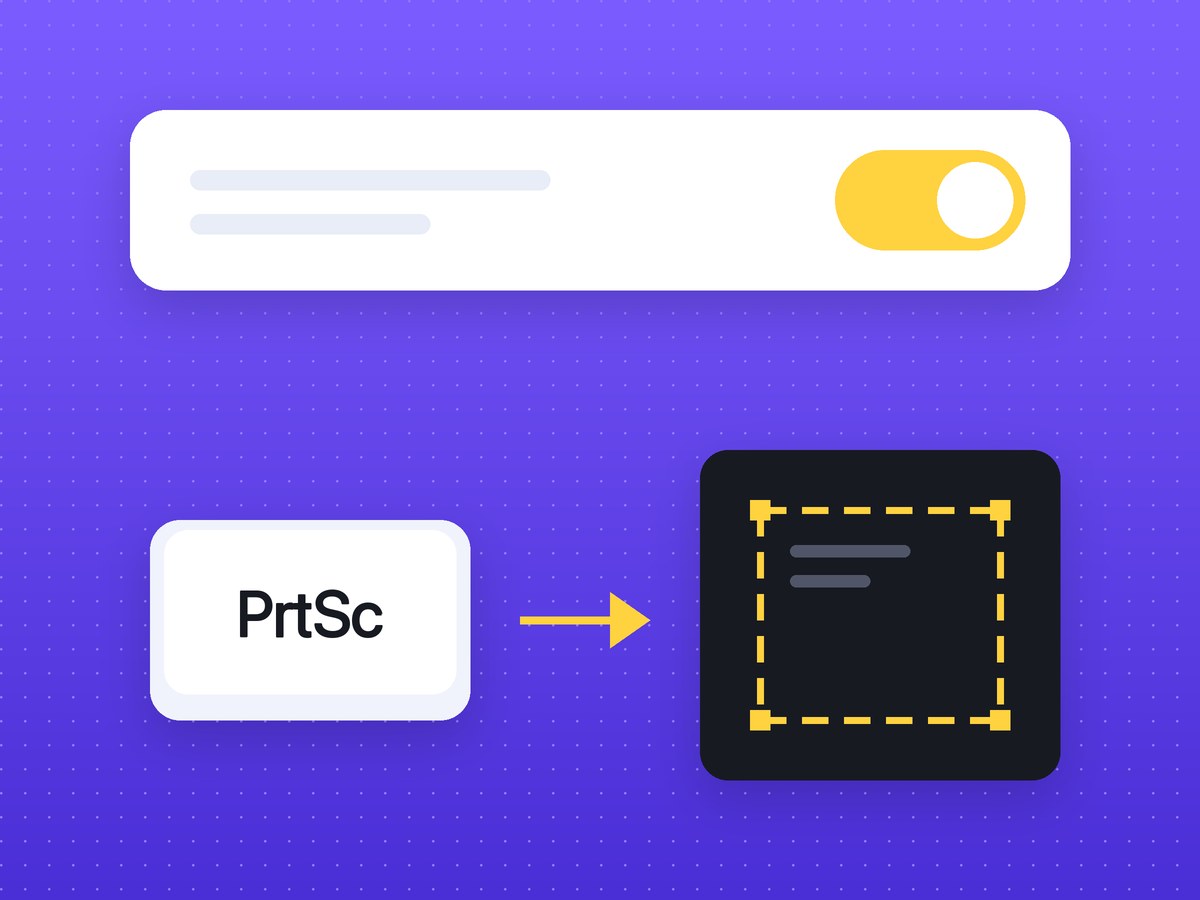
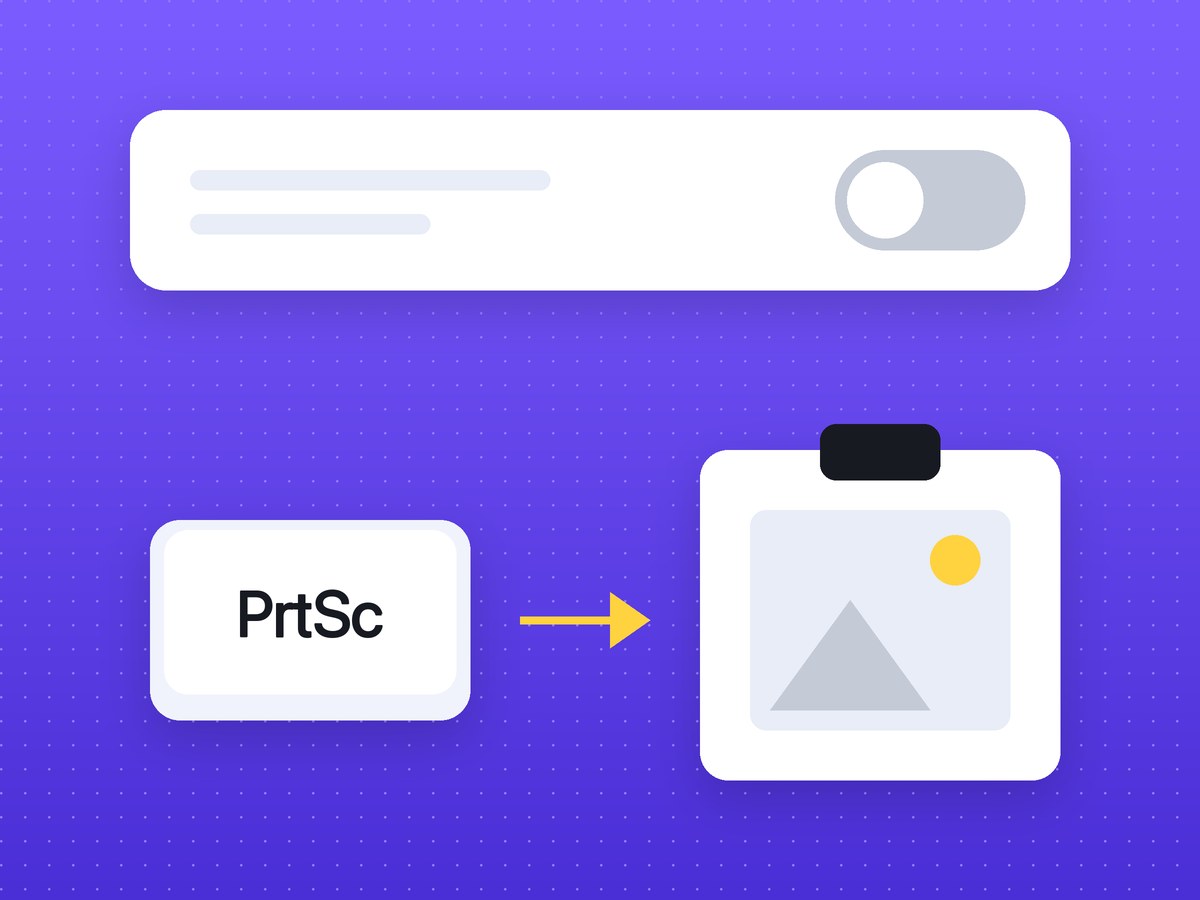
- Switch off Use the Print screen key to open screen capture (on some builds: to open Snipping Tool).
- Restart the screenshot app you want on the key.
In Windows 10
Settings → Ease of Access → Keyboard → Use the PrtScn button to open screen snipping. Off by default there; if someone turned it on, the same switch turns it off.
What the key does after that
- PrtSc copies the whole screen to the clipboard, nothing saved.
- Alt+PrtSc copies only the active window.
- Win+PrtSc saves the screen as a file to Pictures › Screenshots.
- Win+Shift+S still opens Snipping Tool, so you lose nothing.
Why your screenshot app stopped answering to PrtSc
While the setting is on, Windows takes the key first and other apps do not get it. Greenshot, ShareX, Lightshot and similar tools start working with PrtSc again once it is off and the app has restarted. If two apps both want the key, only one wins: pick one and give the other a different shortcut.
A browser extension cannot use PrtSc at all
Chrome does not let extensions register the PrtSc key, so browser screenshot tools use combinations such as Ctrl+Shift+A. If you want the key itself, it has to be a desktop app or the capture built into Windows.
If the key is fine and you miss what comes after it, such as arrows, blur over an email or a link instead of a file, see the Print Screen replacement and how it compares with Snipping Tool.
FAQ
Why does Print Screen open Snipping Tool?
Windows 11 turned on the setting Use the Print screen key to open screen capture. Switch it off in Settings, Accessibility, Keyboard.
Where do Print Screen screenshots go?
PrtSc alone puts the screen in the clipboard; paste it with Ctrl+V. Win+PrtSc saves a file to Pictures, Screenshots.
How do I make Greenshot or ShareX work with Print Screen again?
Turn off the Windows setting that gives the key to Snipping Tool, then restart the app.