How to take a long screenshot of a whole web page
A long (scrolling) screenshot shows the whole page as one image, including the part below the fold. Chrome, Firefox, Edge, Android and iPhone can all take one without extra software, each in its own way, and each breaks on the same kinds of pages.

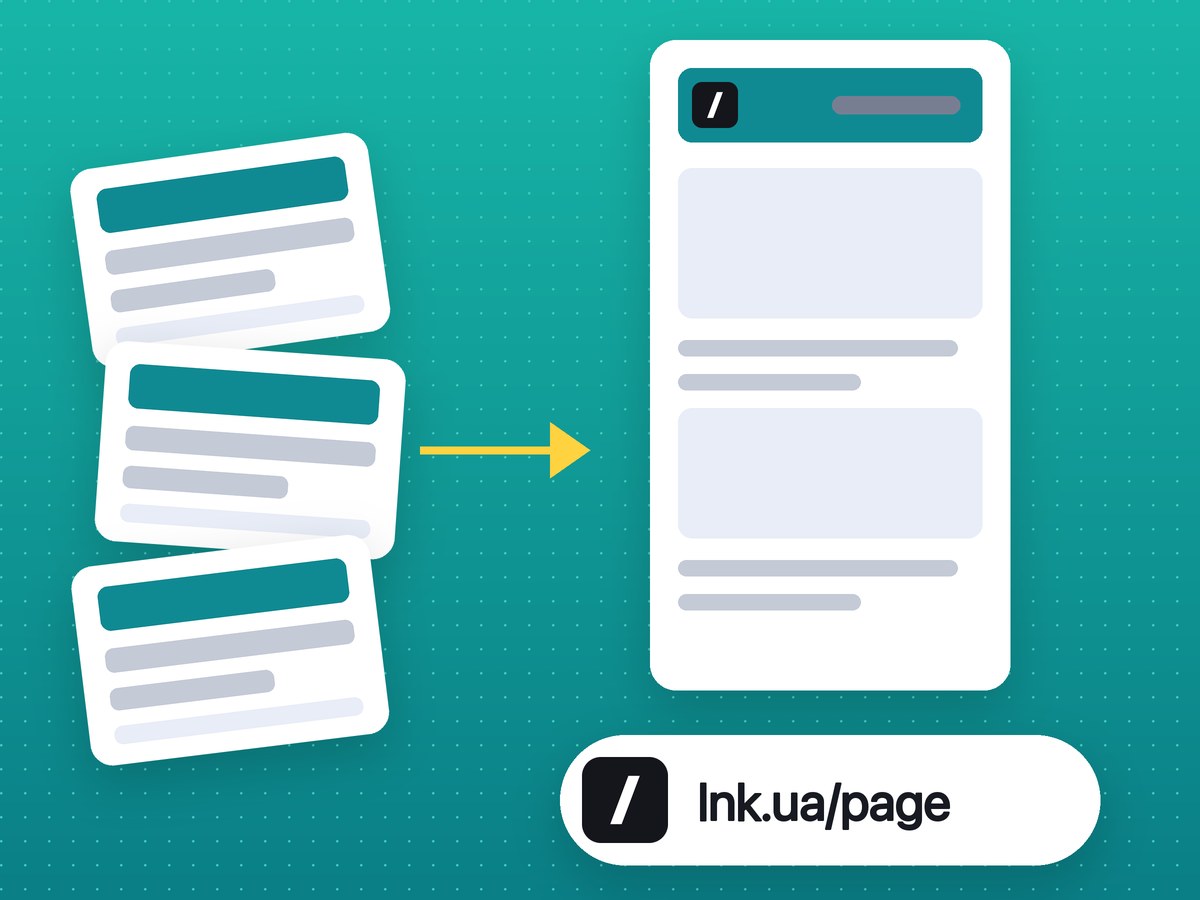
A long screenshot, also called a scrolling or full-page screenshot, captures a web page from top to bottom in one image. The usual screenshot keys only take what is on the screen, so for a long page you need one of the ways below.
Chrome: the hidden DevTools command
- Open the page and press F12 (⌥⌘I on Mac) to open DevTools.
- Press Ctrl+Shift+P (⌘⇧P on Mac) and type screenshot.
- Pick Capture full size screenshot. A PNG of the whole page lands in Downloads.
The catch: you get a file, nothing else. Marking it up or sharing it is up to you.
Firefox: built into the context menu
- Right-click an empty spot on the page and choose Take Screenshot, or press Ctrl+Shift+S.
- Click Save full page, then download or copy it.
Edge: Screenshot
Press Ctrl+Shift+S, choose Capture full page. Edge opens the result with a pen and lets you save or copy it.
Android and iPhone
- Android 12 and newer: take a normal screenshot, tap Capture more and drag the frame down. Some phone makers call it a scroll capture.
- iPhone, in Safari: take a screenshot, tap the preview, open the Full Page tab. It is saved as a PDF, not a picture.
Windows and macOS on their own cannot do it
Snipping Tool, Win+Shift+S and ⇧⌘4 capture only what is visible. For a long page on a computer, use the browser ways above or a tool that scrolls and stitches.
Where long screenshots break
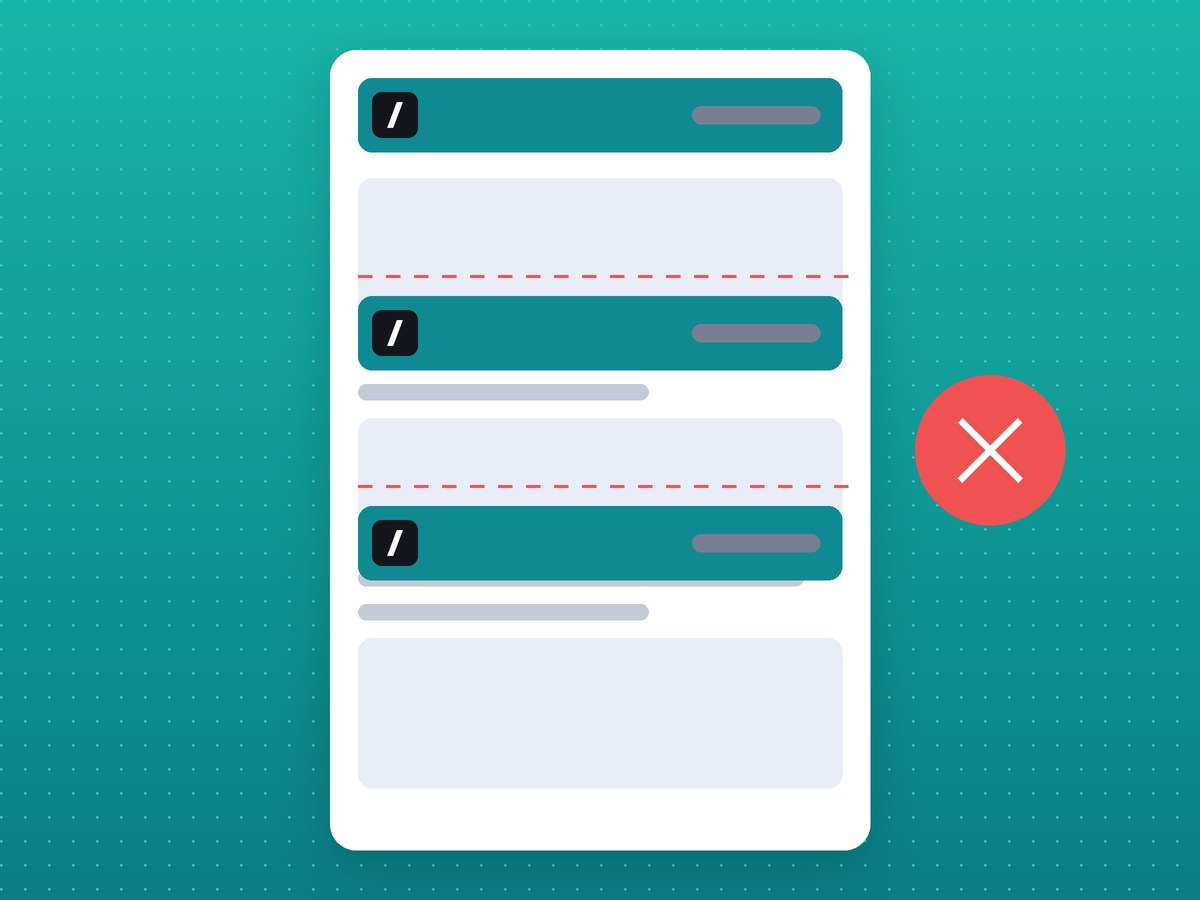
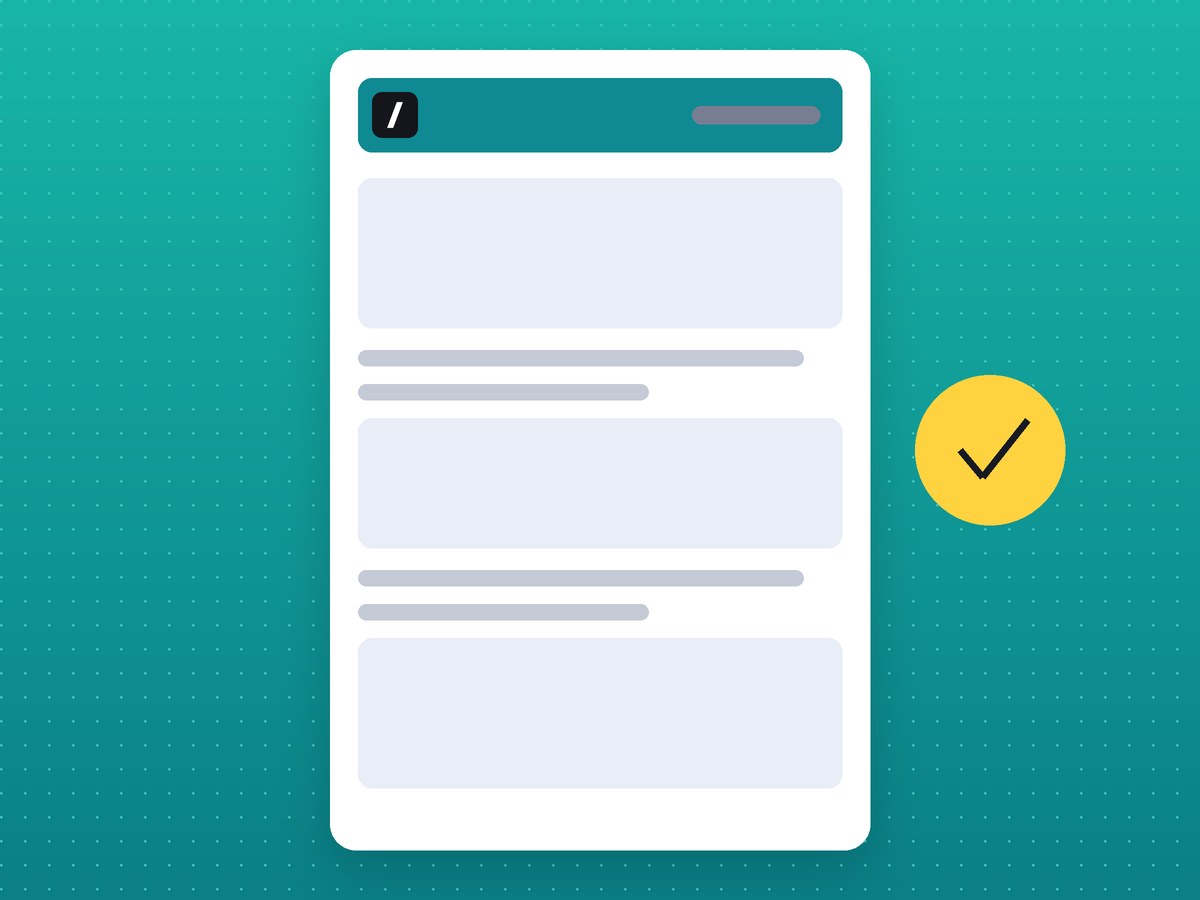
The first trap is the sticky header. A tool that scrolls and stitches screen by screen photographs it on every screen, so the same bar repeats down the whole image and covers the text under it. Chat widgets pinned to a corner do the same. Our extension hides fixed and sticky elements after the first frame, so the header appears once.
Other places where it goes wrong:
- Lazy-loaded images stay blank if they never scrolled into view. Scroll the page to the bottom once before capturing.
- Scrolling inside a block (web mail, chats, online editors) is not the page scroll: every built-in way captures the page around it, not the list inside. Our extension does not capture it either, only the page.
- Endless feeds never end. Scroll down to where you need it and capture what has loaded.
- Very tall pages hit size limits: Firefox and DevTools may fail or cut the image. Capture in parts.
When you need more than a file
If the long screenshot is going into a bug report or a chat, the next steps are the same every time: crop, add arrows, hide an email, send it. The full page screenshot extension scrolls the page itself, opens the result in an editor and gives you a short link instead of a heavy file.
FAQ
What is a long screenshot?
A capture of a whole page or list, longer than the screen, joined into one image. It is also called a scrolling or full-page screenshot.
How do I take a long screenshot on a PC?
In Chrome use DevTools and the Capture full size screenshot command, in Firefox and Edge press Ctrl+Shift+S and pick the full page option. Windows itself has no scrolling capture.
Why is part of my long screenshot blank?
The images on that part had not loaded yet. Scroll the page to the end, wait a second, then capture again.
Can I take a long screenshot of a chat or an email list?
Not with the page tools: the list scrolls inside a block. Capture it in several screenshots.